Help: Create application or services
How do I create an application or service?
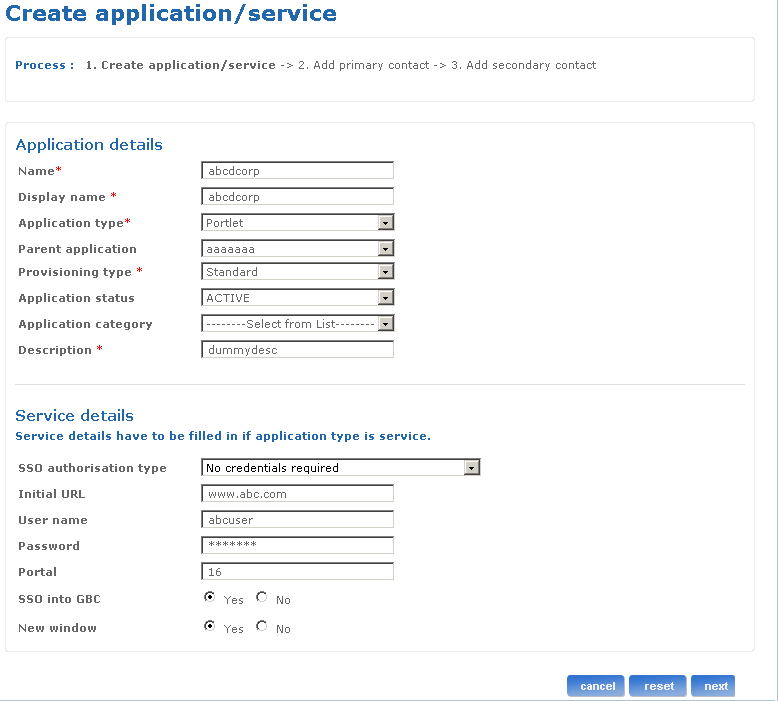
The Create application/services screen is used to create a new application or service. Service details have to be filled in if application type is service.
Follow the steps detailed below to create an application or service.
- Log on to the administration application with the helpdesk admin rights.
- Click the Create application/services link on the left pane of the page. The Create application/services screen appears.
- Type the name of application in the Name field.
- Type the display name of application in the Display name field.
- Select the application type from the Application type drop-down list box.
- If the application type that is selected is portlet, it means it is an application and it does not require any credentials. So the sso-auth-type is automatically set to no_credentials_required. The administrator need not provide service details in this case.
- If intranet_without_sso and internet_without_sso are selected, then the sso_auth_type is automatically set to no_credentials_required. The administrator needs to provide other service details except for user name and password in this case.
- If other application types are selected, no_credentials_required sso_auth_type is disabled. The administrator will be able to select only other sso_auth_types. In this case all the mandatory service details need to be provided.
- Select the parent application from the Parent application drop-down list box.
- Select the provisioning type from the Provisioning type drop-down list box.
- Select the application status from the Application status drop-down list box.
- Select the application category from the Application category drop-down list box.
- Type the description for the application details.
- Select the SSO authorisation type from the SSO authorisation drop-down list box. The Service details have to be filled in if the application type is service.
- Type the initial url in the Initial URL field.
- Type the user name in the User name field.
- Type the password in the Password field.
- Type the portal in the Portal field.
- Select the appropriate SSO option for the GBC.
- Select the appropriate option for the New window option.
- Click cancel if you want to cancel the action you are performing on this screen and go back to the Application screen.
- Click reset if you want to reset the fields to their actual state. You can re-enter all the information once again.
- Click next to go to the Add primary contact screen.
The following is a screen shot of the Create application/services screen:
Return to top
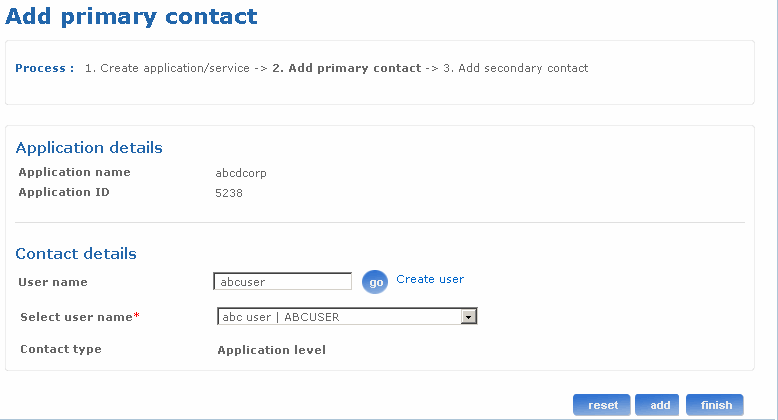
Add primary contact to application or service
The Create application/services screen is used to create a new application or service. Service details have to be filled in if application type is service.
Follow the steps detailed below to create an application or service.
- Log on to the administration application with the helpdesk admin rights.
- Click the Create application/services link on the left pane of the page. The Create application/services screen appears.
- Type the name of application in the Name field.
- Type the display name of application in the Display name field.
- Select the application type from the Application type drop-down list box.
- If the application type that is selected is portlet, it means it is an application and it does not require any credentials. So the sso-auth-type is automatically set to no_credentials_required. The administrator need not provide service details in this case.
- If intranet_without_sso and internet_without_sso are selected, then the sso_auth_type is automatically set to no_credentials_required. The administrator needs to provide other service details except for user name and password in this case.
- If other application types are selected, no_credentials_required sso_auth_type is disabled. The administrator will be able to select only other sso_auth_types. In this case all the mandatory service details need to be provided.
- Select the parent application from the Parent application drop-down list box.
- Select the provisioning type from the Provisioning type drop-down list box.
- Select the application status from the Application status drop-down list box.
- Select the application category from the Application category drop-down list box.
- Type the description for the application details.
- Select the SSO authorisation type from the SSO authorisation drop-down list box. The Service details have to be filled in if the application type is service.
- Type the initial url in the Initial URL field.
- Type the user name in the User name field.
- Type the password in the Password field.
- Type the portal in the Portal field.
- Select the appropriate SSO option for the GBC.
- Select the appropriate option for the New window option.
- Click cancel if you want to cancel the action you are performing on this screen and go back to the Application screen.
- Click reset if you want to reset the fields to their actual state. You can re-enter all the information once again.
- Click next to go to the Add primary contact screen.
The following is a screen shot of the Create application/services screen:
Return to top
Add secondary contact to application or service
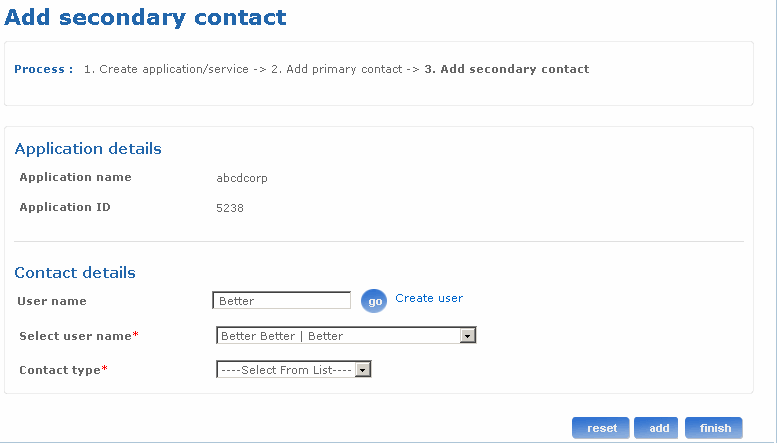
The Add secondary contact screen is used to add secondary contact details of the application or services.
Follow the steps detailed below to add a secondary contact to an application or service.
- Log on to the administration application with the helpdesk admin rights.
- Click the Create application/services link on the left pane of the page. The Create application/services screen appears.
- Specify the application/services details and click next. The Add primary contact screen appears.
- Specify the primary contact details of the application/services and click add. The Add secondary contact screen appears. The application name and application ID details are displayed in the application details section of the screen. You can select an existing user in the system and assign the user as a contact user or create a new contact user.
- To look for existing users, type either first name, last name or login name of that user in the User name field and click on the go button. The Select user name drop-down list box is populated with the matching results. Select a user from Select user name list box. The selected user name appears in the Select user name drop-down list box. Optionally, click the Create user link to go to the Create user screen. You can create a new user using this screen. After a new user is created the control returns to the Add secondary contact screen. The user name, and select user name fields are populated.
- Select the contact type for the secondary contact from the Contact type drop-down list box.
- Click add to add additional secondary contact.
- Click reset if you want to reset the fields to their actual state. You can re-enter all the information once again.
- Click finish to finish the Create application/service process.
The following is a screen shot of the Add secondary contact screen.
Return to top