Help: Maintain company
Overview of the Maintain company process
The Maintain Company screen provides facilities to manage and edit information related to companies. Depending on the login, access to different companies is restricted.
The different users are listed next:
- HelpDesk Admin - Has access to all the companies in the application.
- DAM (Distributor Administrator) - Has access to those companies which are associated with the user's distributor account.
- CAM (Company Administrator) - Has access to those companies which are assigned to the user as primary or additional accounts.
- eCAM (Delegated Administrator) - Has access to only one company which the user is associated with.
You can reach the Maintain Company screen by selecting a company displayed in the following screens:
- Admin Home Dashboard
- Company Landing page
- Company details section of the Maintain User page
- Company details section of the Maintain Distributor page
Return to top
How do I search for a company?
You can use the search company feature to search for an existing company in the system. The search results depend on the profile (Helpdesk admin, DAM, CAM, eCAM) of the user who is doing the search. Follow the steps detailed below to search for an existing company:
- Log on to the administration application.
- In the Search company section on the admin home page, type the name of the company you want to search for. The search functionality supports wild card based search. As per normal conventions * represents zero or multiple character match and ? represents single character match.
- Select the status from the Status drop-down list box. This facilitates a search based on the company status.
- Select a different distributor or business unit from the Distributor/BU name drop-down list box if required. By default the ALL option is selected.
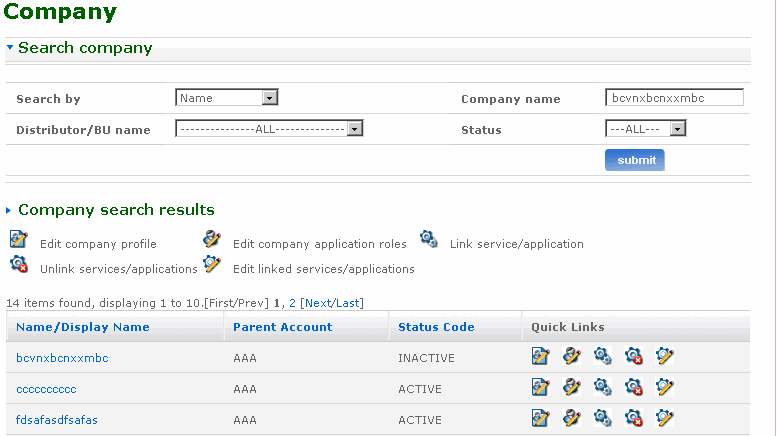
- Click submit. The Company search results screen appears listing all the companies matching your search criteria. Click the relevant quick link available on this screen to go to the corresponding screen. The following is a list of quick link icons available on this screen.
 - Click this icon to go to the Edit Company screen. You can edit basic company profile using this screen.
 - Click this icon to go to the Edit Roles screen. The company has a set of applications linked to it. Different companies can have different roles on these applications. This screen is used to change these roles.
 - Click this icon to go to the Link services/application screen. Applications and services can be linked with the company using this screen.
 - Click this icon to go to the Unlink services/application screen. You can unlink services or applications that are associated with the company using this screen.
 - Click this icon to go to the Edit linked services/application screen. Services which require account level authentication are setup using this screen. Account level user name and password for services can be also be managed in this screen.
- Click the Company name link to open the Maintain company screen. The Maintain company screen provides a set of links to manage the company profile. Click the required link on this screen to go to the corresponding screen.
The following is a screen shot of the Search company screen.
Return to top
What can I do in the Maintain company screen?
You can use the Maintain company screen to maintain an existing company in the system. Follow the steps detailed below to search for an existing company and go to the Maintain company screen:
- Log on to the administration application.
- In the Search company section on the admin home page, type the name of the company you want to search for. The search functionality supports wild card based search. As per normal conventions * represents zero or multiple character match and ? represents single character match.
- Select the status from the Status drop-down list box. This facilitates a search based on the company status.
- Select a different distributor or business unit from the Distributor/BU name drop-down list box if required. By default the ALL option is selected.
- Click submit. The Company search results screen appears listing all the companies matching your search criteria. Click the relevant quick link available on this screen to go to the corresponding screen.
- Click the Company name link to open the Maintain company screen. Click on the required link to go to the corresponding screen.
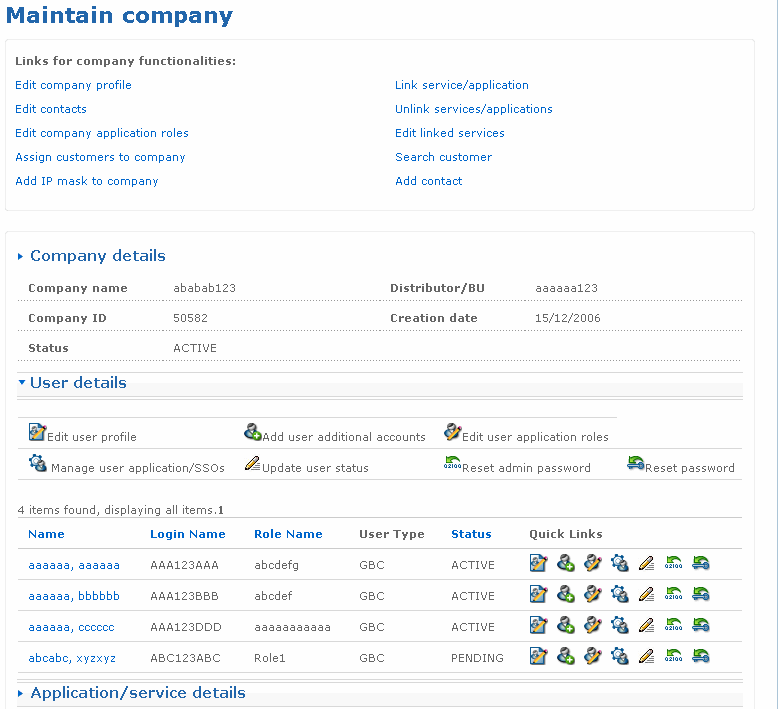
Given next is the list of sections available on the Maintain company screen.
- Links for company functionalities - This section has various links to manage the company profile. Availability of links is subjected to the logged in user’s profile.
- Company details - This section displays basic company details such as company name, status, parent of the company etc.
- User details - This section lists company users. Only specific number of users are displayed in this section. This number can be configured in the database.
- Application details - This section lists applications that are assigned to the company.
Given next is a list of links available on the Maintain company screen.
- Edit profile - Click this link to go to the Edit profile screen. You can edit the company profile using this screen.
- Edit roles - Click this link to go to the Edit roles screen. The company has a set of applications linked to it. Different companies can have different roles on these applications. This screen is used to change these roles.
- Edit contacts - Click this link to go to the Edit contact screen. Each company has a point of contact associated with it. You can edit the contacts of the company using this screen.
- Link services/applications - Click this link to go to the Link services/applications screen. Applications and services can be linked with the company using this screen.
- Unlink services/applications - Click this link to go to the Unlink services/applications screen. You can remove services or applications linked to the company using this screen.
- Edit linked services/applications - Click this link to go to the Edit linked services screen. The services which require account level authentication are setup using this screen. Account level user name and password for services can also be managed in this screen.
- Assign customers to company - Click this link to go to the Assign customers to company screen. You can assign customers to the company using this screen.
- Add IP mask to company – Click this link to go to the Add IP mask to company screen. You can use the Add IP mask to company link to add the IP address for the company.
- Search customer - Click this link to go to the Search customer screen. You can use the search customer feature to search for an existing customer.
The following is a screen shot of the Maintain company screen.
Return to top
How do I edit a company profile?
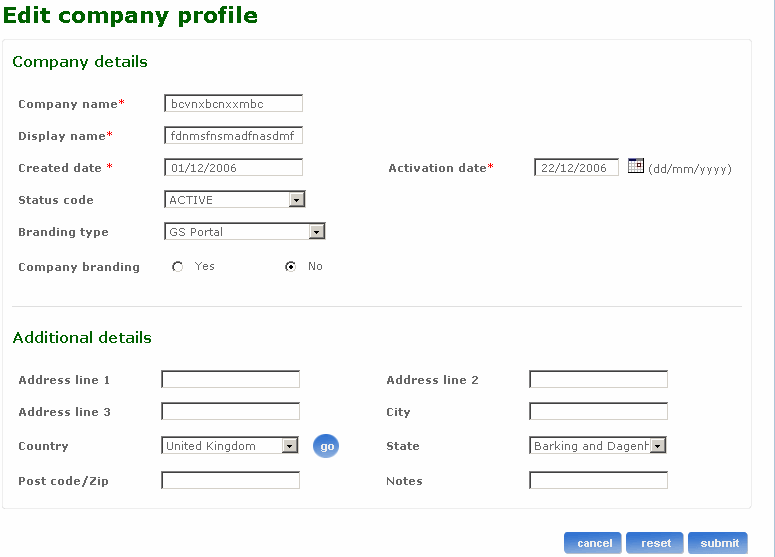
You can use the Edit profile link in the Maintain company screen to edit the profile of the company. All the details related to the company are pre-populated in the respective fields.
Follow the steps detailed below to edit the company profile.
- Log on to the administration application.
- Type the name of the company whose profile you want to edit in the Company name field.
- Select the status of the company from the Status drop-down list box.
- Select a distributor or business unit from the Distributor/BU name drop-down list box.
- Click submit. The Company search results screen appears listing all the companies matching your search criteria.
- Click the relevant Company name link to open the Maintain company screen.
- Click the Edit profile link to open the Edit profile screen. Alternatively, click the quick link icon from the company search results screen to open this screen.
- Type the name of the company in the Company name field to change the name of company. This entry has to be unique, which means you cannot create a company that already exists in the BT admin application. This field accepts only valid characters, numbers and some special characters.
- The creation date of the company is displayed. Type another display name for the company in the Display name field to change the display name of company. This field accepts only valid characters and numbers and special characters are not permitted.
- Type another date from when the company will be active in the Activation date field to change the activation date of company. Alternatively, click the calendar icon and select a date. This is required only when the status of the company is changed to pending.
- Select the status of the company from the Status code drop-down list box to change the status of the company.
- Change the address in the Address line fields to change the address of the company.
- Type another name of the city to change the city where the company is located.
- Select another country from the Country drop-down list box to change the location of company.
- Select another state from the State drop-down list box to change the location of company.
- Type another post or ZIP code to change the post or ZIP code of the place where the company is located.
- Type additional notes if any.
- Click cancel if you want to cancel the action you are performing on this screen and go back to the Maintain company screen.
- Click reset if you want to reset the fields to the original values.
- Click submit to edit the company profile.
The following is a screen shot of the Edit company profile screen.
Return to top
How do I edit roles of a company?
You can use the Edit roles link in the Maintain company screen to edit the application roles of the company. All the applications that belong to the company are listed here and the administrator can choose the application for which the roles are to be edited.
Follow the steps detailed below to edit the roles of the company.
- Log on to the administration application.
- In the Search company section, type the name of the company for which you want to edit the roles in the Company name field.
- Select the status of the company from the Status drop-down list box.
- Select a distributor or business unit from the Distributor/BU name drop-down list box.
- Click submit. The Company search results screen appears listing all the companies matching your search criteria.
- Click the relevant Company name link to open the Maintain company screen.
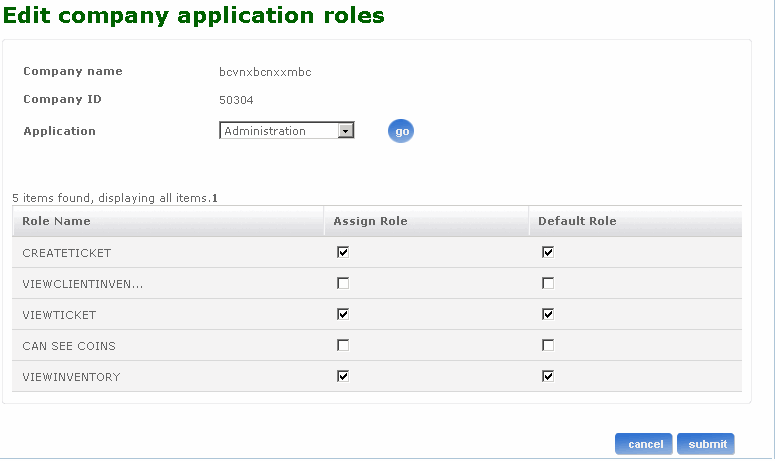
- Click the Edit roles link to open the Edit company application roles screen. Alternatively, click the quick link icon
 from the company search results screen to open this screen. The company name and company ID that has been created in the create company screen are displayed.
- Select the application for which company roles need to be edited from the Application drop-down list box. A list of roles that the company has for the selected application appears. It is a subset of the roles that this company’s distributor has for the same application.
- Select the check box to assign the role to the company. Clear the check box to remove the role from the company.
- Select the check box to assign the role as a default role to the company. The default roles will be assigned by default to the users when they are associated with the company.
- Click submit to edit the company roles. The Edit company roles status screen appears displaying the message that the company roles are edited successfully. Click on the Maintain company link to continue.
- Click cancel if you want to cancel the action you are performing on this screen and go back to the Maintain company screen.
The following is a screen shot of the Edit company application roles screen.
Return to top
How do I edit the company contacts?
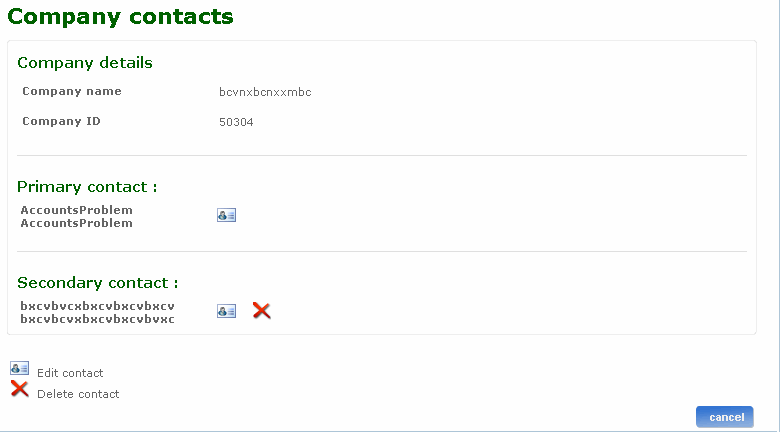
You can use the Edit contacts link in the Maintain company screen to edit the primary and secondary contacts for a company that exists in the system. The primary contact is only editable. The secondary contacts for the company can be edited or deleted.
Follow the steps detailed below to edit contacts of the company:
- Log on to the administration application.
- In the Search company section, type the name of the company for which you want to edit the contact in the Company name field.
- Select the status of the company from the Status drop-down list box.
- Select a distributor or business unit from the Distributor/BU name drop-down list box.
- Click submit. The Company search results screen appears listing all the companies matching your search criteria.
- Click the relevant Company name link to open the Maintain company screen.
- Click the Edit contacts link to open the Company contacts screen.
- Click on the edit primary contacts icon to open the Edit contact screen. The company name and company ID created in the Create company screen are displayed.
- Type the user name in the User name field. Alternatively click
 . Select a user from the list of users that are displayed. The selected user name appears in the Select user drop-down list box.
- Select the user name from the Select user name drop-down list box. Alternatively, you can also create a new user with the link provided beside the Username field. After a new user is created, the control returns to the Edit contact screen with the user name, and select user name fields populated.
- Select the contact type from the Select contact typedrop-down list box.
- Click submit to edit the primary contact of the company. The Contacts editedscreen appears displaying the message that the contact of the company has been edited successfully. Click on the Maintain company link to continue.
- Click cancel if you want to cancel the action you are performing on this screen and go back to the Maintain company screen.
- Click the edit secondary contacts icon to edit the secondary contacts.
- Click the delete secondary contacts icon if you want to delete the secondary contact for the company.
Note: The steps to edit secondary contacts are similar to that of editing primary contacts. After you carry out step 15, carry out steps 10 to 14 to edit secondary contacts.
The following is a screen shot of the Company contacts screen.
Return to top
How do I link a service or application to an existing company?
You can link a service or application using the Link services/applications screen.
Follow the steps detailed below to link a service or application to an existing company.
- Log on to the administration application.
- In the Company name field, type the name of the company to which you want to link a service or application.
- Select the status from the Status drop-down list box.
- Select a distributor or business unit from the Distributor/BU name drop-down list box.
- Click submit. The Company search results screen appears listing all the companies matching your search criteria.
- Click the relevant Company name link to open the Maintain company screen.
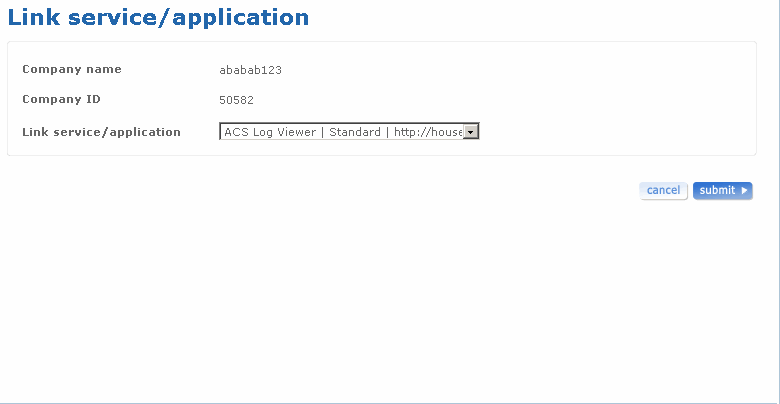
- Click the Link services/applications link to open the Link services/applications screen. Alternatively, click the quick link icon from the company search results screen to open this screen. The company name and company ID are displayed in this screen.
- Select an application or service from the Link service/application drop-down list box. SSO(Single Sign-On) user name and Passwordfields are displayed if the selected application is a service and requires account level authentication.
- Type a user name in the Service user name field.
- Type a password in the Service password field.
- Click submit. If the service or application is linked successfully, theService/application link status screen appears.
- Click cancel if you want to cancel the action you are performing on this screen and go back to the Maintain company screen.
The following is a screen shot of the Link services/applications screen.
Return to top
How do I unlink services or applications from an existing company?
You can unlink a service or application that is already linked to a company using the Unlink service/application screen.
Follow the steps detailed below to unlink a service or application from a company.
- Log on to the administration application.
- In the Company name field, type the name of the company for which you want to unlink a service or application.
- Select the status from the Status drop-down list box.
- Select a distributor or business unit from the Distributor/BU name drop-down list box.
- Click submit. The Company search results screen appears listing all the companies matching your search criteria.
- Click the relevant Company name link to open the Maintain company screen.
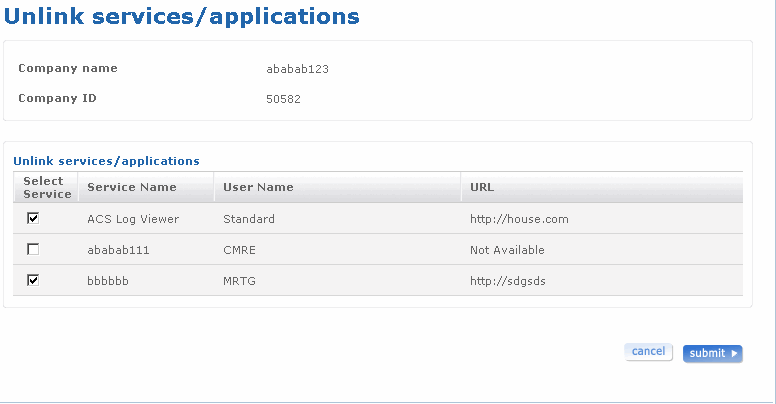
- Click the Unlink services/applications link to open the Unlink services/applications screen. Alternatively, click the quick link icon from the Company search results screen to open the Unlink services/applications screen. The company name and company ID are displayed. The Unlink services/applications section contains a list of services or applications that are assigned to the company's distributor.
- Select the option against the required application or service from the Select service column.
- Click submit to unlink the selected services or applications. If the service or application is unlinked successfully, the Services/applications unlink status screen appears.
- Click cancel if you want to cancel the action you are performing on this screen and go back to the Maintain company screen.
The following is a screen shot of the Unlink services/applications screen.
Return to top
How do I edit linked services?
The Edit linked services link on the Maintain company screen allows you to edit SSO (Single Sign-On) details of the services that are linked to the company. You can modify the user name and the password for account level services using this screen.
Follow the steps detailed below to edit the services that are linked to an existing company.
- Log on to the administration application.
- In the Company name field, type the name of the company whose services you want to edit.
- Select the status from the Status drop-down list box.
- Select a distributor or business unit from the Distributor/BU name drop-down list box.
- Click submit. The Company search results screen appears listing all the companies matching your search criteria.
- Click the relevant Company name link to open the Maintain company screen.
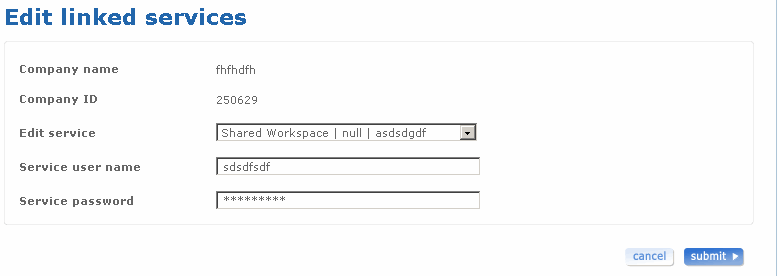
- Click the Edit linked services link to open the Edit linked services screen. Alternatively, click the quick link icon from the Search results screen to open the edit services screen. The company name and company ID selected in the Maintain company screen are displayed.
- Select a service from the Edit service drop-down list box.
- Type a different user name if required in the Service user name field.
- Type a different password if required in the Service password field.
- Click submit. If the service details have been edited successfully, the Service edit status screen appears.
- Click cancel if you want to cancel the action you are performing on this screen and go back to the Maintain company screen.
The following is a screen shot of the Edit linked services screen.
Return to top
How do I assign customers to an existing company?
The Assign customers to company screen is used to associate and disassociate the customers to and from an existing company.
Follow the steps detailed below to assign customers to an existing company.
- Log on to the administration application.
- In the Search company section, type the name of the company for which you want to assign customers.
- Select the status from the Status drop-down list box.
- Select a distributor or business unit from the Distributor/BU name drop-down list box.
- Click submit. The Company search results screen appears listing all the companies matching your search criteria.
- Click the relevant Company name link to open the Maintain company screen.
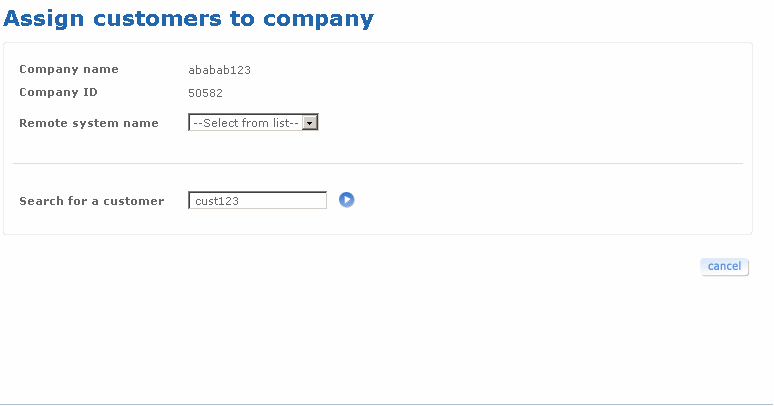
- Click the Assign customers to company link to open the Assign customers to company screen. The company name and company ID are displayed.
- Select a remote system from the Remote system name field. A list of available customers and mapped customers is displayed. Alternatively, click to search for customers. Customers matching the search criteria are listed in the Available customers list box. Only customers who belong to the distributor of a company can be linked to the selected company.
- Transfer the customers from one list to another using the ‘Move’ buttons.
- Click submit to assign the available customers and mapped customers to the company. If the customers are assigned successfully to the company, the Assign customers to company status screen appears.
- Click cancel if you want to cancel the action you are performing on this screen and go back to the Maintain company screen.
The following is a screen shot of the Assign customers to company screen.
Return to top
How do I add IP mask to a company?
You can use the Add IP mask to company link in the Maintain company screen to add the IP address for the company. The IP address can be used to access the system from the company. The user from this company is authorised to use only the IP address that has been added.
Follow the steps detailed below to add IP mask to a company.
- Log on to the administration application.
- In the Search company section, type the name of the company for which you want to assign customers.
- Select the status from the Status drop-down list box.
- Select a distributor or business unit from the Distributor/BU name drop-down list box.
- Click submit. The Company search results screen appears listing all the companies matching your search criteria.
- Click the relevant Company name link to open the Maintain company screen.
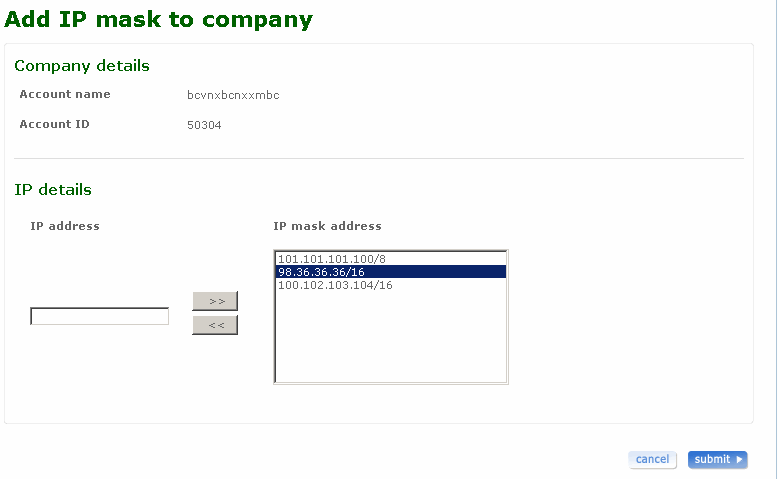
- Click the Add IP mask to company link to open the Add IP mask to company screen. The account name and account ID are displayed in the company details section.
- Type the IP address you want to add in the IP address field. The IP address should contain the IP followed by / and the mask number. For example, 153.27.169.171/16. Click on >> to add the address to the list.
- Select an IP mask address from the IP mask address table and click << to remove the IP address from the list.
- Click cancel if you want to cancel the action you are performing on this screen and go back to the Maintain company screen.
- Click submit to add IP mask to company. If the entered IP mask address is not in the proper format then an error message is displayed. If the IP address is added successfully to the company, the status screen appears.
The following is a screen shot of the Add IP mask to company screen.
Return to top
How do I search for a customer?
You can use the search customer feature to search for an existing customer.
Follow the steps detailed below to search for an existing customer:
- Log on to the administration application.
- In the Search company section, type the name of the company you want to search for.
- Select the status from the Status drop-down list box.
- Select a distributor or business unit from the Distributor/BU name drop-down list box.
- Click submit. The Company search results screen appears listing all the companies matching your search criteria.
- Click the relevant Company name link to open the Maintain company screen.
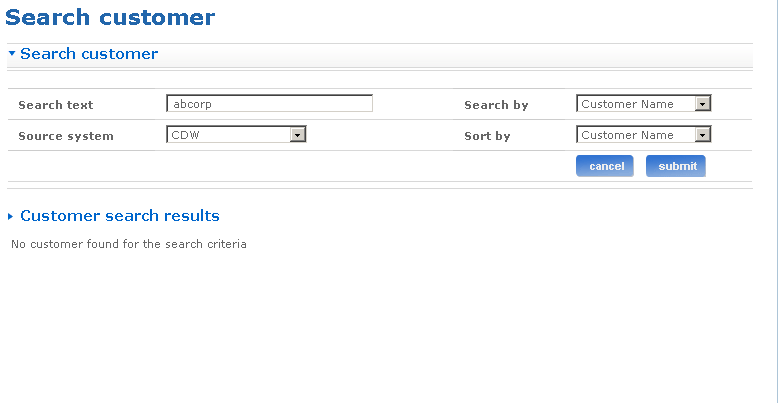
- Click the Search customer link to search the customer for the company. The Search customer screen appears.
- Click the Search customer link to search the customer by criteria.
- Type the search text of the customer you want to search for. The search functionality supports wild card based search. As per normal conventions * represents zero or multiple character match and ? represents single character match.
- Select the search option for the customer from the Search by drop-down list box.
- Select the source system option for the customer from the Source system drop-down list box. The source system is the remote system of the customer.
- Select the sort by criteria from the Sort by drop-down list box.
- Click cancel if you want to cancel the action you are performing on this screen and go back to the Maintain company screen.
- Click submit to search for the customer with the entered search criteria.
The following is a screen shot of the Search customer screen.
Return to top
How do I add contact to a company?
The Add contact screen is used to add contact details of the company.
Follow the steps detailed below to add a contact to the company.
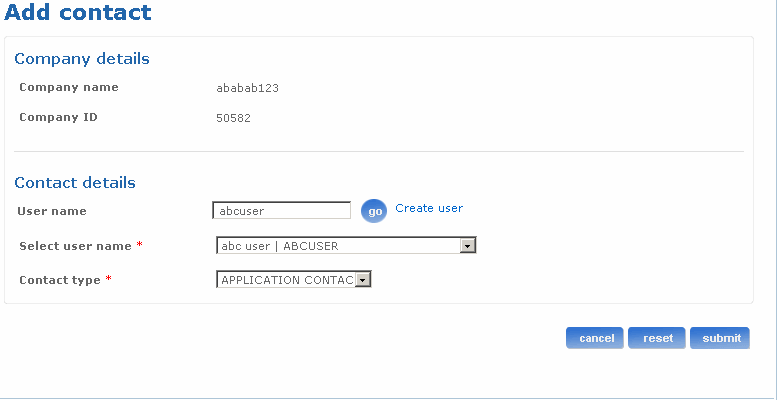
- Click on the add contact link to navigate to the Add contact screen. The company name and company ID details are displayed in the company details section of the screen.
- You can select an already existing user in the system and assign the user as a contact user or create next contact user. To look for existing users, type either first name, last name or login name of that user in the User name field. Select a user from Select user name list box. The selected user name appears in the Select user name drop-down list box. Optionally, click the Create user link to go to the Create user screen. You can create a new user using this screen. After a new user is created the control returns to the Add contact screen. The user name and select user name fields are populated.
- Select the contact type from the Contact type drop-down list box.
- Click cancel if you want to cancel the action you are performing on this screen and go back to the Maintain company screen.
- Click reset if you want to reset the fields to their actual state. You can re-enter all the information once again.
- Click submit to add the contact details. The Add contact status screen appears displaying the message that the contact has been added successfully to the company.
The following is a screen shot of the Add contact screen.
Return to top