Internal Billing
Overview
How do I browse folders for Invoices?
How do i download the Invoices ?
How do I browse folders for Credit Notes?
How do i download the Credit Notes?
Overview
The Internal Billing is the interface where you can view the invoices and Credit Notes for the last three years for all users. You can browse through the region and month to select the Invoices or Credit Notes for any user for view or download.
The Invoices - Listed by Month screen allows you to do the following :
Browse through the available list of folders- one for each month in the UK or US region and arranged in the descending order of the date.
Folders are named in the format Month_Year for easy selection
Follow the steps listed to view the Internal Billing screen:
1. Click Internal Billing tab on the secondary navigation menu bar on the Solutions View home page.
2. The Internal Billing screen is displayed.
3. This is the default application landing page named Invoices - Listed by Month
The Credit Notes - Listed by Month screen allows you to do the following :
Browse through the available list of folders- one for each month in the UK or US region and arranged in the descending order of the date.
Folders are named in the format Month_Year for easy selection
Follow the steps listed to view the Credit Notes - Listed by Month screen:
1. Click Internal Billing tab on the secondary navigation menu bar on the Solutions View home page.
2. The Internal Billing screen is displayed.
3. Click on the Credit notes link in the Internal Billing screen.
4. The Credit Notes - Listed by month Screen is displayed.
Return to top
Invoices - Listed by Month
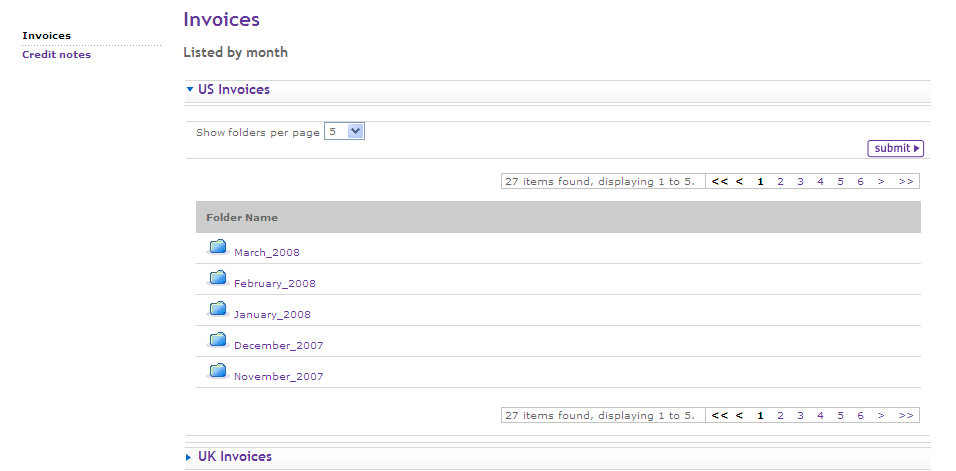
The Invoices - Listed by Month page allows you to select the month for which you would like to see the invoices for a particular region.
Follow the steps listed to view the Invoices - Listed by Month screen:
1. Click Internal Billing tab on the secondary navigation menu bar on the Solutions View home page.
2.The Internal Billing screen is displayed.
3. You can expand the view for the particular region i.e. US and UK.
4. You can use pagination facility to select the month which is not in the current view.
5. You can use the dropdown provided to change the number of folders displayed per page in the table.
6. Click on the month for which you would like to see the invoices.
Followoing screen shows the folder list for US Invoices.
Return to top
Invoice List
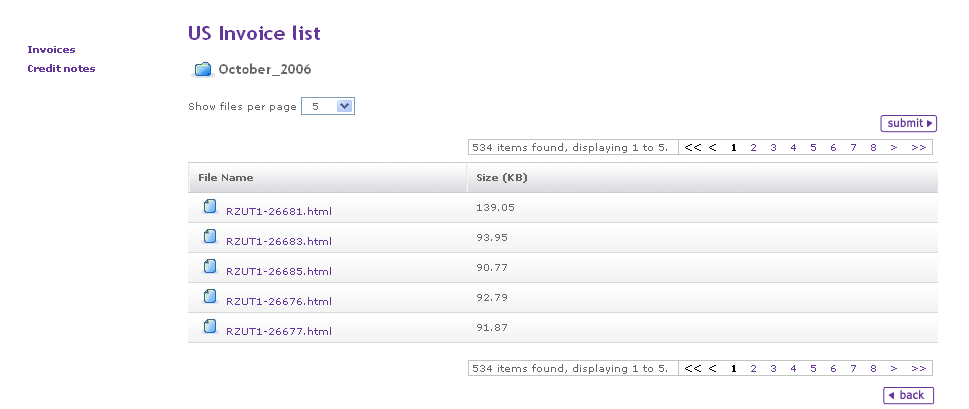
The Invoice List screen allows you to view a list of Invoices for the selected region i.e. US or UK
Follow the steps listed to view or download the Invoice
1. Click Internal Billing tab on the secondary navigation menu bar on the Solutions View home page.
2. The Internal Billing screen is displayed.
2. You can expand the view for the particular region i.e. US and UK.
3. You can use pagination facility to select the month which is not in the current view.
4. You can use the dropdown provided to change the number of files displayed per page in the table.
5. Click on the month for which you would like to see the invoices.
6. The Invoice List screen is diaplayed.
7. Click on the invoice you would like to view or download.
8. A standard file open/save dialog will appear. You can choose to Open, Save or Cancel the operation.
9. Click on the back button to go back to the Invoices - Listed by month screen.
Return to top
Credit Notes - Listed by Month
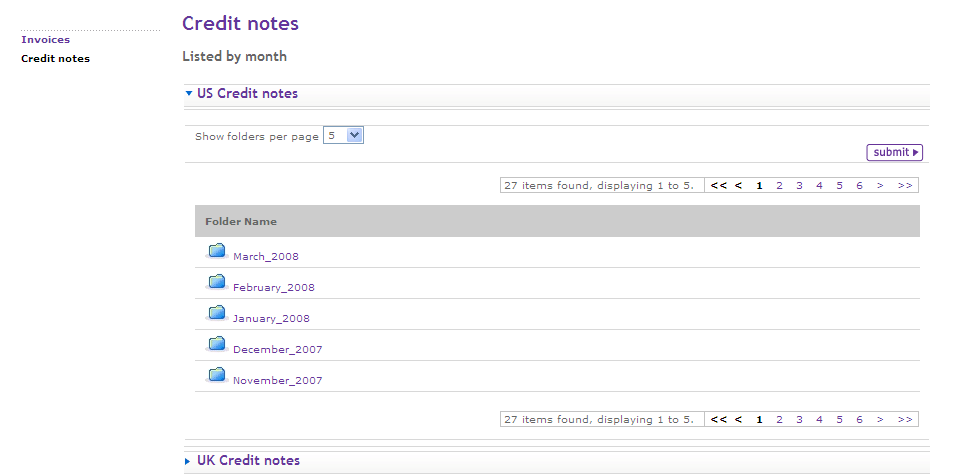
Credit Notes - Listed by Month page allows you to select the month for which you would like to see the Credit Notes for a particular region.
Follow the steps listed to view the Credit Notes - Listed by Month screen:
1. Click Internal Billing tab on the secondary navigation menu bar on the Solutions View home page.
2. The Internal Billing screen is displayed.
3. Click on the Credit notes link in the tertiary navigation in Internal Billing screen.
4. The Credit Notes - Listed by month Screen is displayed.
5. You can expand the view for the particular region i.e. US and UK.
6. You can use pagination facility to select the month which is not in the current view.
7. You can use the dropdown provided to change the number of folders displayed per page in the table.
8. Click on the month for which you would like to see the Credit Notes.
Return to top
Credit Notes List
The Credit Notes List screen allows you to view a list of Credit Notes for the selected region i.e. US or UK
Follow the steps listed to view or download the Credit Notes
1. Click Internal Billing tab on the secondary navigation menu bar on the Solutions View home page.
2. The Internal Billing screen is displayed.
3. Click on the Credit notes link in the tertiary navigation in Internal Billing screen.
4. The Credit Notes - Listed by month Screen is displayed.
5. You can expand the view for the particular region i.e. US and UK.
6. You can use the dropdown provided to change the number of files displayed per page in the table.
7. You can use pagination facility to select the month which is not in the current view.
8. Click on the month for which you would like to see the Credit Notes.
9. Click on the Credit Notes file you would like to view or download.
10. A standard file open/save dialog will appear. You can choose to Open, Save or Cancel the operation.
11. Click on the back button to go back to the Credit Notes - Listed by Month screen.

Return to top