Help: First time user
First time user activities
A first time user of the system needs to perform certain mandatory actions immediately after logging in. An internal user of BT who is not registered needs to register in the first time user account.
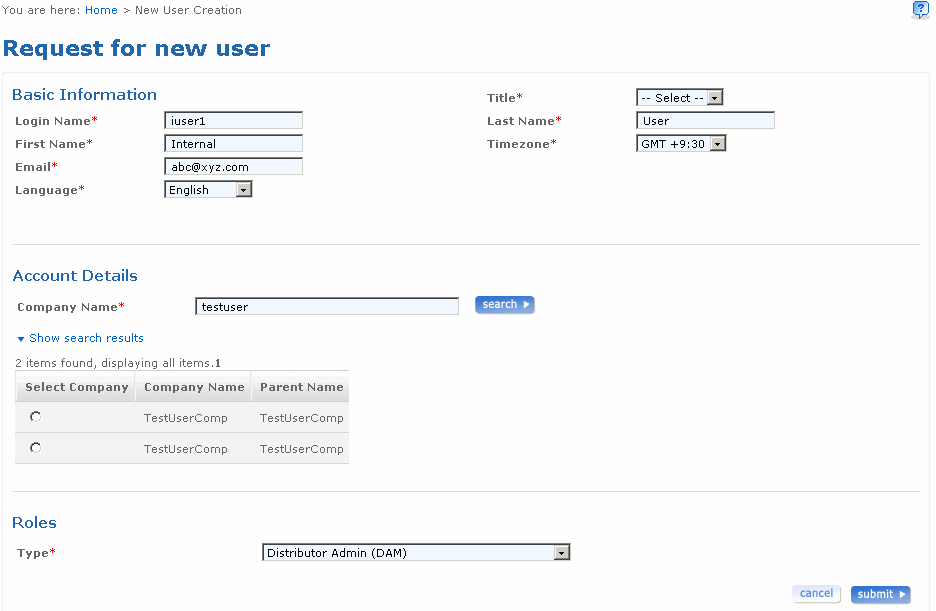
The Request for new user screen is used to create user account details.
Follow the steps detailed below to set up a new user account.
- Log on to the application with the user name and password provided to you. The Login name for the user is displayed in the Basic information section of the Request for new user screen.
- Select the title of the user from the Title drop-down list box. The first name and last name is displayed.
- Type another name in the First name field to change the first name of the user.
- Type another name in the Last name field to change the last name of the user.
- Type the email address of the user in the Email field. If the user is an internal user and user details are present in the active directory, then the user's details are populated in the appropriate fields.
- Select the time zone from the Time zone drop-down list box.
- Select the language from the Language drop-down list box.
- Type the company name in the Company name drop-down list box and click search to search for the company. The list of all companies based on the search text appears. Select the option to select the company.
- Select the role type of the user from the Role type drop-down list box.
- Click cancel if you want to cancel the request for new user process.
- Click submit to submit the details for the user.
The following is a screen shot of the Request for new user screen.
Return to top
Change credentials
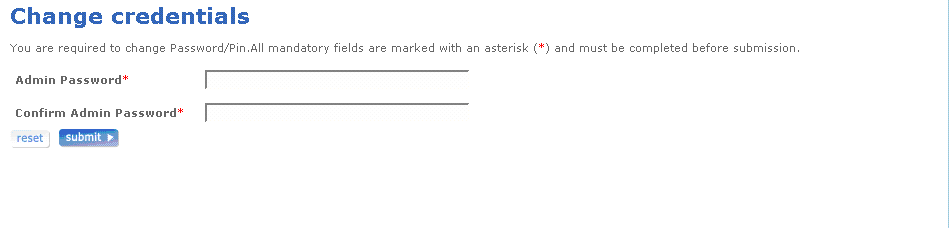
The Change credentials screen is used to change the user's credentials. A first time user of the system should change the password for security reasons.
Follow the steps detailed below to change credentials.
- Log on to the application with the user name and password provided to you.
- Specify the user details in the Request for new user screen and click submit. The Change credentials screen appears.
- Type the password in the Password field.
- Type the confirm password in the Confirm password field.
- Click reset if you want to reset the fields to their original state. You can re-enter all the information once again.
- Click submit to change the user credentials.
The following is a screen shot of the Change Credentials screen.
Return to top
Change PIN
Users with admin privileges are expected to change their PIN the first time they log in to the system for security reasons.
Follow the steps detailed below to change your PIN.
- Log in to the system. The Security challenge phrase set up screen appears. Set five challenge questions.
- Type the answers of the security challenge phrases.
- Click submit. The Change credentials screen appears.
- Type the new password in the Password field.
- Type the new password again in the Confirm password field.
- Type the new PIN in the PIN field.
- Type the PIN again in the Confirm PIN field.
- Click submit to change the user credentials.
- Click reset if you want to reset the fields to their original state. You can re-enter all the information once again. Clicking on the reset button will clear the values in the input boxes.
The following is a screen shot of the Change PIN screen.
Return to top