Invoice
- Overview of the billing home page
- Overview of Invoice
- How do I select customer for view invoice?
- How do I view invoice for customer?
- How do I view and download document for given invoice?
Overview of the billing home page
Billing application aggregates bills from various back end systems and portal applications. It provides quick access to billing information globally, enables users to download the billing information, view proforma at early stages. The user can also validate or dispute over the proforma.
From the billing home page you can access the following services:
- Invoice: It is used to view the invoice for the selected customer.
- Proforma: It is used to view the proforma for the selected customer.
Invoice overview
Billing application aggregates bills from various back end systems and portal applications. It provides quick access to billing information globally, enables users to download the billing information and view proforma at early stages.
The invoice functionality is used to view invoices for the selected customer.
Follow the steps detailed below to go to invoice screen.
- Log on to the application.
- Click Billing on the secondary navigation menu bar. The Select customer for view invoice screen appears.
Select customer for view invoice
You can use the select customer feature to search for the customer whose invoice details you want to view. Follow the steps detailed below to search for an existing customer.
- Log on to the application.
- Click Billing on the secondary navigation menu bar. The Select customer for view invoice screen appears.
- Select a search option from the Search by drop-down list box.
- Type the search text in Search text field to search for the customer matching the text criteria.
- Select a distributor or business unit from the Distributor/BU name drop-down list box.
- Select a sort order from the Sort by drop-down list box.
- Click submit. The screen gets updated listing all the customer name matching the search criteria.
- Click the Customer name link to open the View invoice screen.
The following is a screen shot of the Search customer for view invoice screen.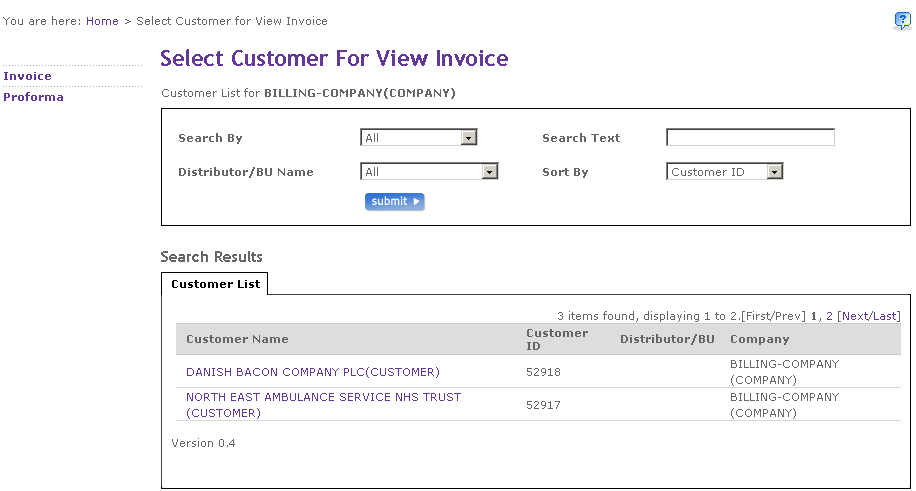
View invoice of customer
View invoice functionality screen allows user to view all the invoices for the selected customer. Invoices for the last three months are displayed by default. You can use the search criteria to filter the invoices based on the search options.
Follow the steps detailed below to view invoice of customer.
- Log on to the application.
- Click Billing on the secondary navigation menu bar. The Select customer for view invoice screen appears.
- Select a search option from the Search by drop-down list box.
- Type the search text in Search text field to search for the customer matching the text criteria.
- Select a distributor or business unit from the Distributor/BU name drop-down list box.
- Select a sort order from the Sort by drop-down list box.
- Click submit. The screen gets updated listing all the customer name matching the search criteria.
- Click the Customer name link to open the View Invoice screen. The View invoice screen displays all the invoices for last three months by default.
- Select my bills option from the Search my bills drop-down list box.
- Type the invoice number in the Search by invoice number field.
- Click submit. The screen gets updated listing all the invoice matching the search criteria.
- Click the Invoice number link to open the View document screen.
The following is a screen shot of the View invoice screen.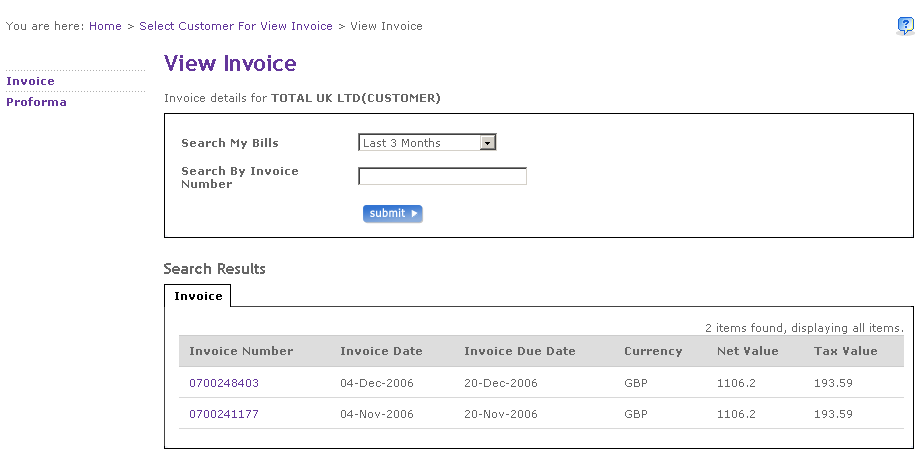
View document
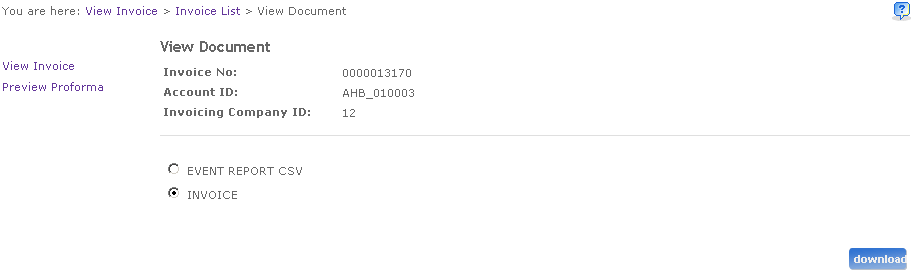
View document screen displays all the documents for the selected invoice number. It also displays various types of formats by which the document can be downloaded.
Follow the steps detailed below to view and download a file.
- Log on to the application.
- Click Billing on the secondary navigation menu bar. The Select customer for view invoice screen appears.
- Select a search option from the Search by drop-down list box.
- Type the search text in Search text field to search for the customer matching the text criteria.
- Select a distributor or business unit from the Distributor/BU name drop-down list box.
- Select a sort order from the Sort by drop-down list box.
- Click submit. The screen gets updated listing all the customer name matching the search criteria.
- Click the Customer name link to open the View Invoice screen. The View invoice screen displays all the invoices for last three month by default.
- Select my bills option from the Search my bills drop-down list box.
- Type the invoice number in the Search by invoice number field.
- Click submit. The screen gets updated listing all the invoice matching the search criteria.
- Click the Invoice number link to open the View document screen.
- Select the appropriate format for viewing and downloading the invoice document.
- Click download. A pop up window appears asking you to select the option to open/save/cancel the document.
The following is a screen shot of the View document screen.