Internal Billing
Overview
- How do I browse for Invoices?
- How do I download Invoices?
- How do I browse for Credit Notes?
- How do I download Credit Notes?
Overview
Internal Billing is the application where you can view invoices and credit notes for the last 25 months for all customers. You can select the month and view lists by BT billing entity (UK or US), and then select specific invoices or credit notes to download. Internal Billing is only available to internal BT users.
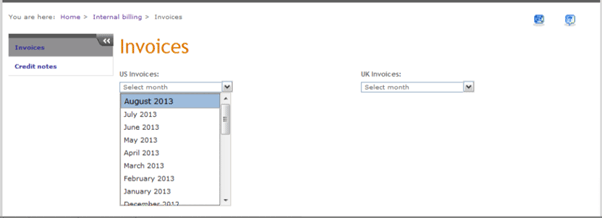
The Invoices screen allows you to do the following:
- Select a month from the drop down list for either UK or US and view a list of available invoices.
- Months are named in the format “Month Year” for easy selection.
Follow the steps listed to view the Invoices screen:
1. Click Internal Billing on the Billing tab on the GS Portal menu bar or on the My Accounts Dashboard.
2. The Invoices screen is displayed.
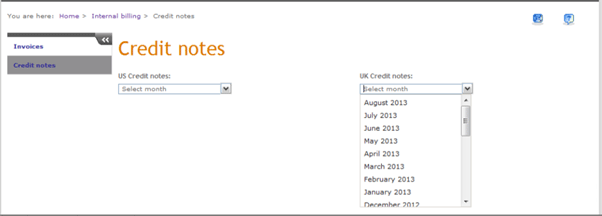
The Credit Notes screen allows you to do the following:
- Select a month from the drop down list for either UK or US and view a list of available credit notes.
- Months are named in the format “Month Year” for easy selection.
Follow the steps listed to view the Credit notes screen:
1. Click Internal Billing on the Billing tab on the GS Portal menu bar or on the My Accounts Dashboard.
2. The Invoices screen is displayed.
3. Click on the Credit notes link in the left hand navigation.
4. The Credit notes screen is displayed.
How do I browse for Invoices?
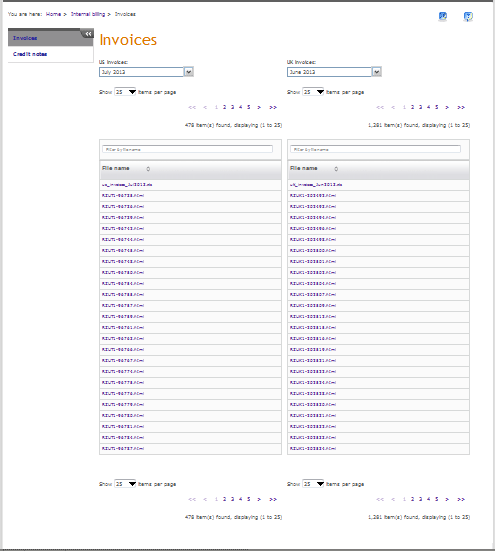
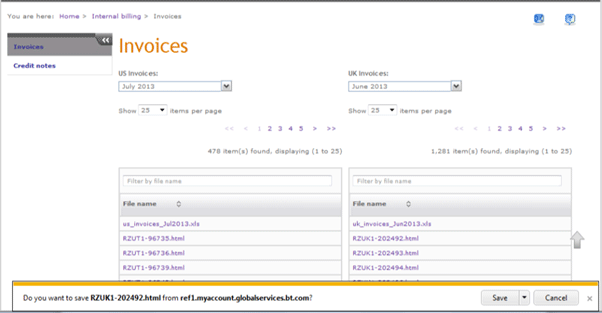
The Invoices screen allows you to select the month and display the list of invoices for UK or US. Follow the steps listed to view the Invoices screen:
1. Click Internal Billing on the Billing tab on the GS Portal menu bar or on the My Accounts Dashboard.
2. The Invoices screen is displayed.
3. Click on the month for which you would like to see the invoice list. You can view the invoice lists for UK and US for the same or different months at the same time.
4. You can use the pagination facility to select an invoice which is not in the current view.
5. You can use the dropdown provided to change the number of invoices displayed per page in the table.
6. You can change the sort order of the table contents by clicking in the column header.
7. You can enter text in the search bar above the table to dynamically filter the output records listed in the table.
How do I download Invoices?
The Invoice screen allows you to view a list of invoices for UK or US and month. Follow the steps listed to view or download an invoice:
1. Click Internal Billing on the Billing tab on the GS Portal menu bar or on the My Accounts Dashboard.
2. The Invoices screen is displayed.
3. Click on the month for which you would like to see the invoice list. You can view the invoice lists for UK and US for the same or different months at the same time.
4. You can use the pagination facility to select an invoice which is not in the current view.
5. You can use the dropdown provided to change the number of invoices displayed per page in the table.
6. You can change the sort order of the table contents by clicking in the column header.
7. You can enter text in the search bar above the table to dynamically filter the output records listed in the table.
8. Click on the invoice you would like to view or download.
9. A standard file save dialog will appear and the invoice will be displayed in a new browser tab.
10. Click on the Cancel button to go back to the Invoices screen.
How do I browse for Credit Notes?
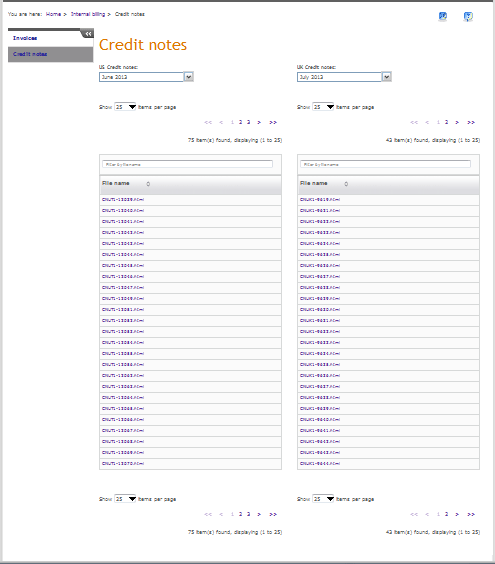
The Credit notes screen allows you to select the month and display the list of credit notes for UK or US. Follow the steps listed to view the Credit notes screen:
1. Click Internal Billing on the Billing tab on the GS Portal menu bar or on the My Accounts Dashboard.
2. The Invoices screen is displayed.
3. Click Credit notes in the left hand navigation.
4. The Credit notes screen is displayed.
5. Click on the month for which you would like to see the credit notes. You can view the credit note lists for UK and US for the same or different months at the same time.
6. You can use pagination facility to select a credit note which is not in the current view.
7. You can use the dropdown provided to change the number of credit notes displayed per page in the table.
8. You can change the sort order of the table contents by clicking in the column header.
9. You can enter text in the search bar above the table to dynamically filter the output records listed in the table.
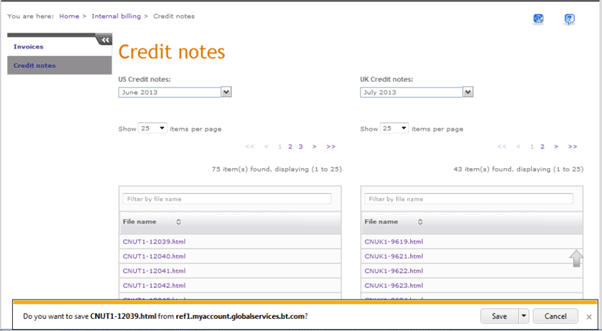
How do I download Credit Notes?
The Credit notes screen allows you to view a list of credit notes for UK or US and month. Follow the steps listed to view or download a credit note:
1. Click Internal Billing on the Billing tab on the GS Portal menu bar or on the My Accounts Dashboard.
2. The Invoices screen is displayed.
3. Click Credit notes on the left hand navigation.
4. The Credit notes screen is displayed.
5. Click on the month for which you would like to see the credit note list. You can view the credit note lists for UK and US, for the same or different months, at the same time.
6. You can use the pagination facility to select a credit note which is not in the current view.
7. You can use the dropdown provided to change the number of credit notes displayed per page in the table.
8. You can change the sort order of the table contents by clicking in the column header.
9. You can enter text in the search bar above the table to dynamically filter the output records listed in the table.
10. Click on the credit note you would like to view or download.
11. A standard file save dialog will appear and the credit note will be displayed in a new browser tab.
12. Click on the Cancel button to go back to the Credit notes screen.