Network Tools
Overview
- How do I search for services and devices?
- How do I perform a Device Test?
- How do I perform a Connectivity Test?
- What is a Quick Test?
Overview
Network Tools allows the user to perform the following tests on access infrastructure supporting the services they provide, own or consume:
- Device test for a Provider end or Member end CE router. This test checks that the device is operational by performing a simple SNMP GET command and displaying the results.
- Connectivity test between a Provider end CE Router and a Member end CE Router. This test performs Round Trip Delay (RTD) tests on the 3 segments of the end to end path (Member CE - POP, POP - POP, Provider CE - POP) and calculates an end to end RTD value which is returned to the user.
Select Network Tools under the Service Performance menu item within GS Portal or the My Account
Dashboard to open the Network diagnostic tool screen.
How do I search for services and devices?
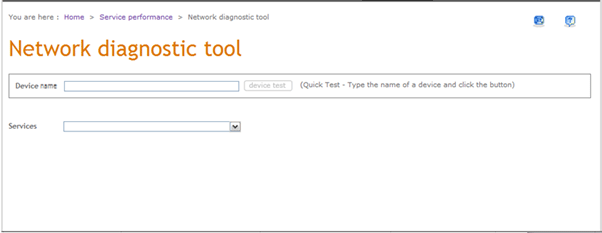
1. Select Network Tools under the Service Performance menu item within GS Portal or the My Account Dashboard to open the Network diagnostic tool screen.
2. Select a Service Access Name from the Services drop down. You can type ahead to see a filtered list of Service Access Names.
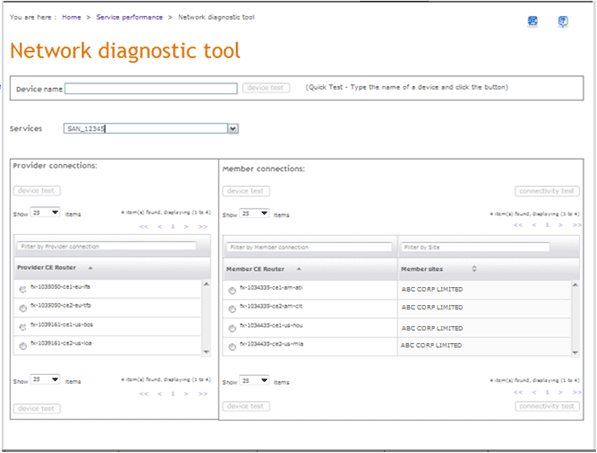
3. A list of Provider CE Routers supporting the Service Access Name (SAN) and a table containing Member CE Routers and Member Sites subscribing to the SAN are displayed.
4. You can use the pagination facility to select a record which is not in the current view.
5. You can use the dropdown provided to change the number of records displayed per page in the table.
6. You can change the sort order of the table contents by clicking in the column header.
7. You can enter text in the search bar above the table to dynamically filter the output records listed in the table.
How do I perform a Device Test?
1. Select Network Tools under the Service Performance menu item within GS Portal or the My Account Dashboard to open the Network diagnostic tool screen.
2. Select a Service Access Name from the Services drop down. You can type ahead to see a filtered list of Service Access Names.
3. A list of Provider CE Routers supporting the Service Access Name (SAN) and a table containing Member CE Routers and Member Sites subscribing to the SAN are displayed.
4. You can use the pagination facility to view a record which is not in the current view.
5. You can use the dropdown provided to change the number of records displayed per page in the table.
6. You can change the sort order of the table contents by clicking in the column header.
7. You can enter text in the search bar above the table to dynamically filter the output records listed in the table.
8. Select the radio button next to a Provider CE router or Member CE router which will enable the respective device test button.
9. Select the device test button to perform the device test.
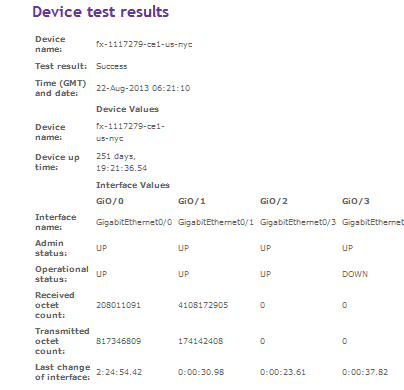
The system will perform the device test and display the Device test results.
How do I perform a Connectivity test?
1. Select Network Tools under the Service Performance menu item within GS Portal or the My Account Dashboard to open theNetwork diagnostic tool screen.
2. Select a Service Access Name from the Services drop down. You can type ahead to see a filtered list of Service Access Names.
3. A list of Provider CE Routers supporting the Service Access Name (SAN) and a table containing Member CE Routers and Member Sites subscribing to the SAN are displayed.
4. You can use the pagination facility to view a record which is not in the current view.
5. You can use the dropdown provided to change the number of records displayed per page in the table.
6. You can change the sort order of the table contents by clicking in the column header.
7. You can enter text in the search bar above the table to dynamically filter the output records listed in the table.
8. Select the radio button next to a Provider CE router and Member CE router which will enable the respective connectivity test button.
9. Select the connectivity test button to perform the connectivity test.
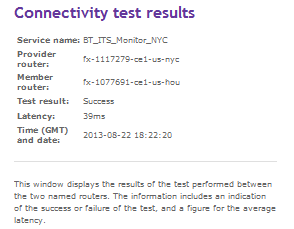
The system will perform a connectivity test and display the Connectivity test results which will show the status of the test and the round trip delay between the selected devices.
What is a Quick Test?
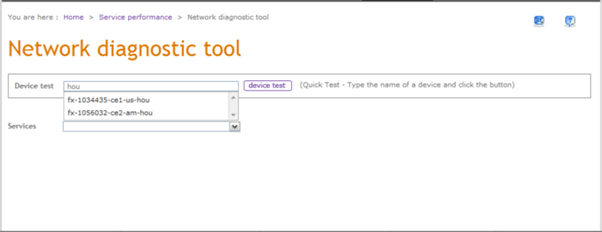
If you know the device name, you can perform a device test by simply entering the device name into the Device name box and clicking the device test button.
1. Select Network Tools under the Service Performance menu item within GS Portal or the My Account Dashboard to open the Network diagnostic tool screen.
2. Start typing the device name into the Device box to display a filtered list of devices.
3. Select the required device from the list. The device test button will be enabled.
4. Select the device test button to perform the device test.
The system will perform the device test and display the device test report.